Programming
The Programming view is where you create and edit the programs your robots follow, such as bird scaring, mowing, and security patrols. Once a program is saved, it can be assigned to a robot or added to a robot's schedule from the Configure view.
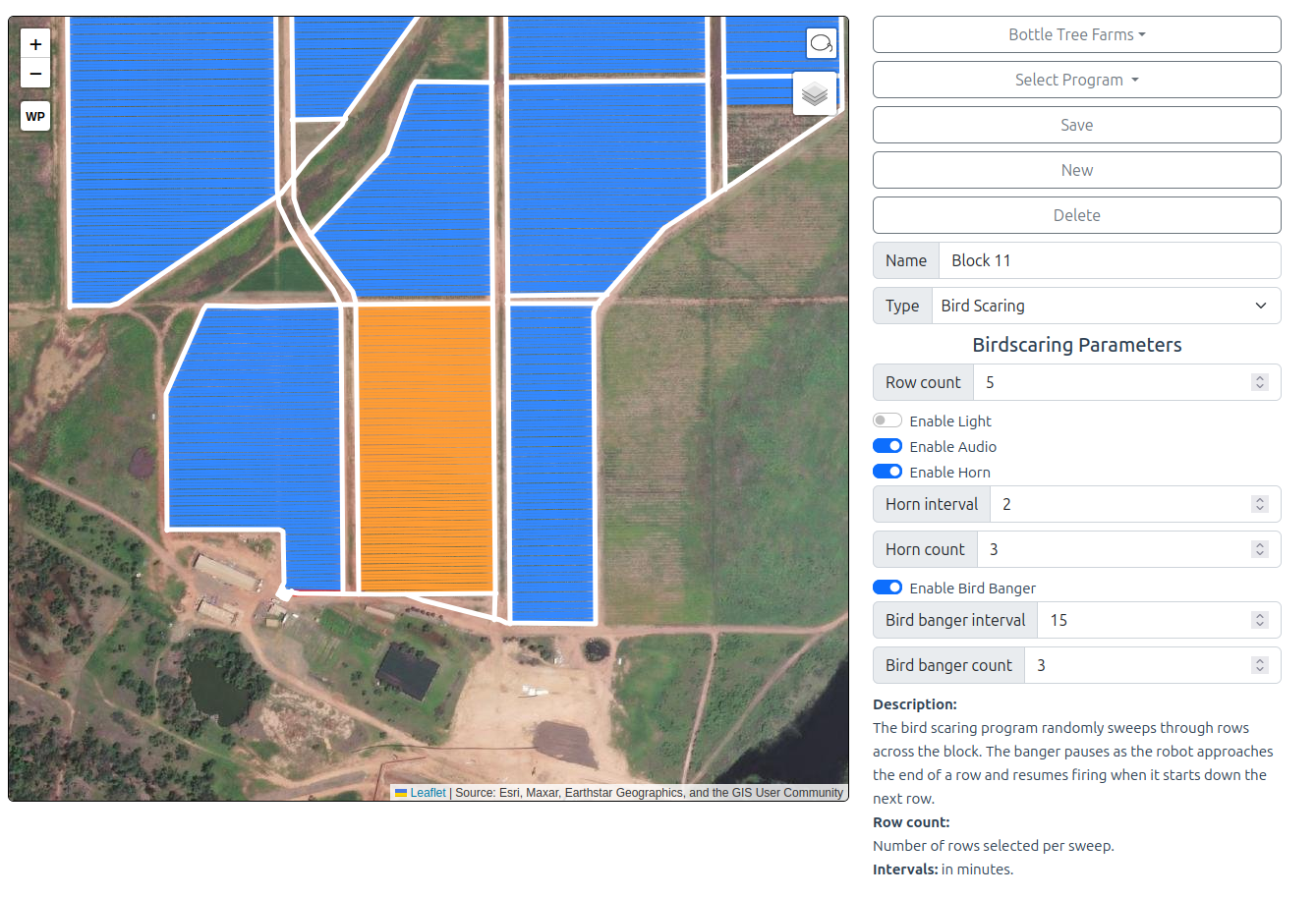
The screen is divided into two panes:
- Map pane (left) shows the farm's rows and corridors and provides tools for selecting rows, placing waypoints, and drawing regions.
- Configuration pane (right) holds the settings for the current program.
Program Types
| Program type | Used for |
|---|---|
| Bird scaring | Deterring birds using the horn, bird banger, light, and audio. |
| Scanning operation | Driving rows in a regular pattern, for example for imaging or spraying. |
| Patrol | Security patrols with person detection and automated responses. |
| Mow area | Mowing a region you draw on the map. |
| Mow rows | Mowing selected rows, with full grass coverage planned automatically. |
Creating a Program
The workflow is the same for every program type:
- Select the map. Use the Select map drop-down to choose the vineyard or orchard the program applies to. The map will centre on the site and show all of its rows and corridors.
- Create or open a program. Select an existing program from the list to edit it, or click New to create one.
- Choose the program type. Select the type from the Program type drop-down.
- Name the program. Give it a clear, descriptive name, such as
East Block. - Set up the program. Select rows, place waypoints, or draw a region as needed, then set the program's parameters. These steps vary by program type and are described below.
- Save. Click Save. The program is now available to be assigned to a robot or added to a robot's schedule.
Editing a Program
- Select the map, then select the program from the program list.
- Make your changes.
- Click Save.
Save your changes
Changes to a program are not applied until you click Save.
Deleting a Program
- Select the map, then select the program from the program list.
- Click Delete, next to the New button.
Program Buttons
| Button | Action |
|---|---|
| New | Creates a new program. |
| Delete | Deletes the selected program. |
| Save | Saves the current program. Click this after creating a program or making any changes. |
Map Tools
| Tool | Location | Used by |
|---|---|---|
| Lasso | Top right of the map | Bird scaring, scanning operation, mow rows |
| Waypoint | Top left of the map | Bird scaring, patrol |
| Draw region | Bottom of the configuration pane | Mow area |
Selecting Rows
Bird scaring, scanning operation, and mow rows programs operate on rows you select.
- Click the lasso tool in the top right of the map.
- Drag the lasso across the rows you want to include.
Selected rows turn orange.
Waypoints
Waypoints define a route for the robot to follow. They are used by bird scaring and patrol programs.
Placing Waypoints
- Click the waypoint tool in the top left of the map.
- Click on the map to drop waypoints in the order you want the robot to follow them.
Waypoint Options
Click a placed waypoint to open its configuration window. From here you can set options for the waypoint or remove it.
| Option | Description |
|---|---|
| Wait minutes | The robot holds its position at the waypoint for the set number of minutes. Use this to control the robot's pace around the block. The horn, speaker, and bird banger continue to run as configured in the program. |
| Play audio | The robot plays a specific audio file at the waypoint. |
| Spin 360 | The robot rotates 360 degrees before moving on. Combined with spotlights, this is useful for scaring bats. |
| Fire bird banger | The robot fires the bird banger at the waypoint (see below). |
Fire bird banger fires immediately, regardless of the program's bird banger timer. For example, if the next timed salvo is not due for another 5 minutes, the banger still fires at the waypoint. The timer then resets, so the next timed salvo is a full interval later.
The bird banger only fires within its allowed time window, which by default is from 1 hour after sunrise to 1 hour before sunset. Outside this window, the waypoint's Fire bird banger option is ignored.
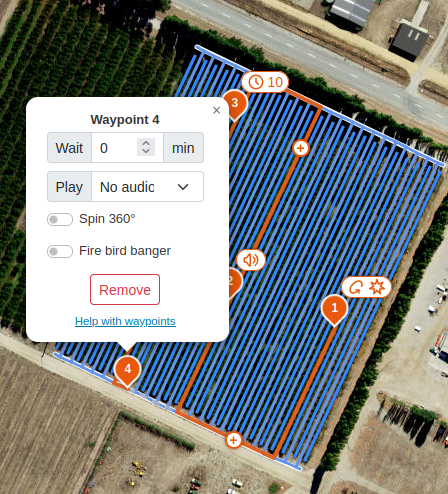
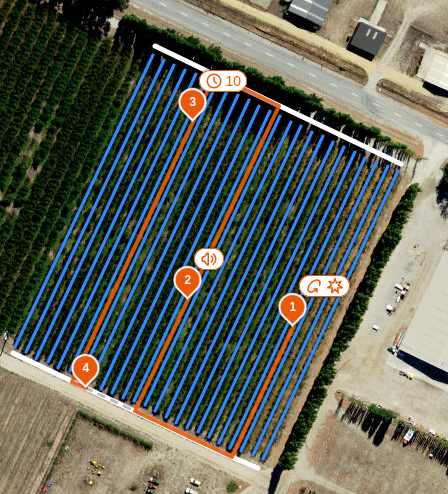
Waypoints with options set are shown on the map with icons beside them.
Bird Scaring
A bird-scaring program sends the robot into a block to drive a set number of rows while running its scaring devices. It can also follow a route of waypoints.
To set up a bird-scaring program, select Bird scaring as the program type and name the program. Then add rows, waypoints, or both:
- Select rows as described in Selecting Rows.
- Place and configure waypoints as described in Waypoints.
When a program contains both rows and waypoints, the robot completes its bird-scaring rows first, then finishes by following the waypoints.
Combining waypoint and row programs
Waypoints are useful for a quick lap of the farm. For example, you could create a waypoint-only program called Bird Scaring Southern Boundary that follows the boundary, then schedule it before a row-based program called Bird Scaring Southern Block that takes the robot into the block.
Parameters
Row Count
The row count sets how many of the selected rows the robot drives each time it visits the block. For example, you might select 20 rows for the program and set the row count to 3. On each visit, the robot drives 3 of those 20 rows.
Keep the row count low
A lower row count is usually more effective than it first appears. The robot gets into the block, scares the birds, and moves quickly on to the next block. If you have many blocks in rotation, a low row count keeps the robot moving around the whole farm rather than spending a long time in one place.
Light
Enable light turns on the optional blue light accessory.
Audio
Enable audio plays the robot's audio playlist. The playlist is set up in the Configure view.
Horn
Enable horn fires the horn at a regular interval.
| Setting | Description | Recommended |
|---|---|---|
| Interval | Time between horn activations, in minutes. | 3–10 minutes |
| Bursts | Number of horn bursts each time the interval elapses. | 3 |
Three bursts every three minutes works well in most situations.
Bird Banger
Enable bird banger fires the bird banger at a regular interval, in the same way as the horn.
| Setting | Description | Recommended |
|---|---|---|
| Interval | Time between salvos, in minutes. | As permitted by local bylaws |
| Shots | Number of shots in each salvo. | 3 |
Check your local bylaws
Set the bird banger interval in line with your local council's bylaws. In much of New Zealand, this is approximately one salvo every 15 minutes (four salvos per hour).
Scanning Operation
A scanning operation drives the robot up and down rows in a regular pattern. It is most commonly used with a robot-mounted camera for imaging trunk disease or gathering other plant data, and can also be used for spraying.
To set up a scanning operation, select Scanning operation as the program type, name the program, and select rows as described in Selecting Rows.
Parameters
| Setting | Description |
|---|---|
| Speed | The speed the robot travels at. |
| Skip every other row | Drives every second row instead of every row. |
| Offset left | Distance in metres the robot travels to the left of the row centre. |
Skip Every Other Row
Use this when one pass treats two rows at once. For example, if you are spraying the undervine on both sides of the robot, driving every second row is enough to cover the whole block.
Offset Left
The offset moves the robot's path to the left of the row centre by the distance you enter, in metres.
This is useful when equipment only works on one side of the robot. For example, with a sprayer on the left side and an offset of 0.5, the robot travels 0.5 m left of centre on the way up the row. On the way back down, it again travels 0.5 m to its left, which is now the other side of the row. Both sides of the row are covered in two passes.
Patrol
A patrol program is used for security applications. The robot follows a route of waypoints and can detect people and respond automatically.
To set up a patrol, select Patrol as the program type and name the program. Patrol programs do not use rows. Instead, place and configure a route of waypoints as described in Waypoints.
Parameters
| Setting | Description |
|---|---|
| Speed | The speed the robot travels at while patrolling. |
| Light | Turns on the robot's headlight. |
| Accessory | Turns on the fitted accessory, such as emergency services lights. |
| Object detection | Enables the robot's built-in person detection. |
Tip
Emergency services lights fitted as the accessory make an effective visible deterrent on patrol.
Person Detection Responses
When object detection is enabled, you can choose what the robot does when it detects a person:
- Stay in place for a set time, for example 30 seconds.
- Turn on the accessory, such as a flashing hazard light.
- Send a notification to your phone.
- Play audio, such as a message asking the person to leave the area or to wait for a guard to arrive.
Mow Area
A mow-area program mows a region that you draw on the map.
To set up a mow-area program, select Mow area as the program type and name the program.
Drawing the Region
- Click Draw region at the bottom of the configuration pane.
- Draw the region on the map. This can be a rectangle or any other polygon.
Parameters
| Setting | Description |
|---|---|
| Perimeters only | Chooses how the region is mowed (see below). |
| Perimeter passes | Slider that sets the number of perimeter passes when Perimeters only is off. |
The Perimeters only toggle selects one of two mowing patterns:
- On: The robot mows only perimeter passes, spiralling inwards with each cut as the region gets smaller, until the whole region is covered.
- Off: The robot mows the number of perimeter passes set by the slider, then mows alternating strips across the remaining area.
Mow-area programs have no other mowing settings.
Mow Rows
A mow-rows program mows along selected rows. It is a separate program type from mow area: rather than drawing a region, you select rows with the lasso tool, as in bird scaring.
To set up a mow-rows program, select Mow rows as the program type, name the program, and select rows as described in Selecting Rows.
The robot works out how many passes it needs down each row for full grass coverage. Wide rows typically need between two and four passes.
The robot also staggers its passes automatically. Rather than making tight U-turns at the end of each row, it moves forward several metres before cutting back into the next pass, leaving enough room on the headland for smooth, easy turns.
Mow-rows programs have no settings beyond row selection.