Monitor View
The Monitor view is the main screen of the Autonabit Dashboard. It gives you a live overview of every robot operating at the selected farm, along with the controls needed to start, pause, stop, or recall them.
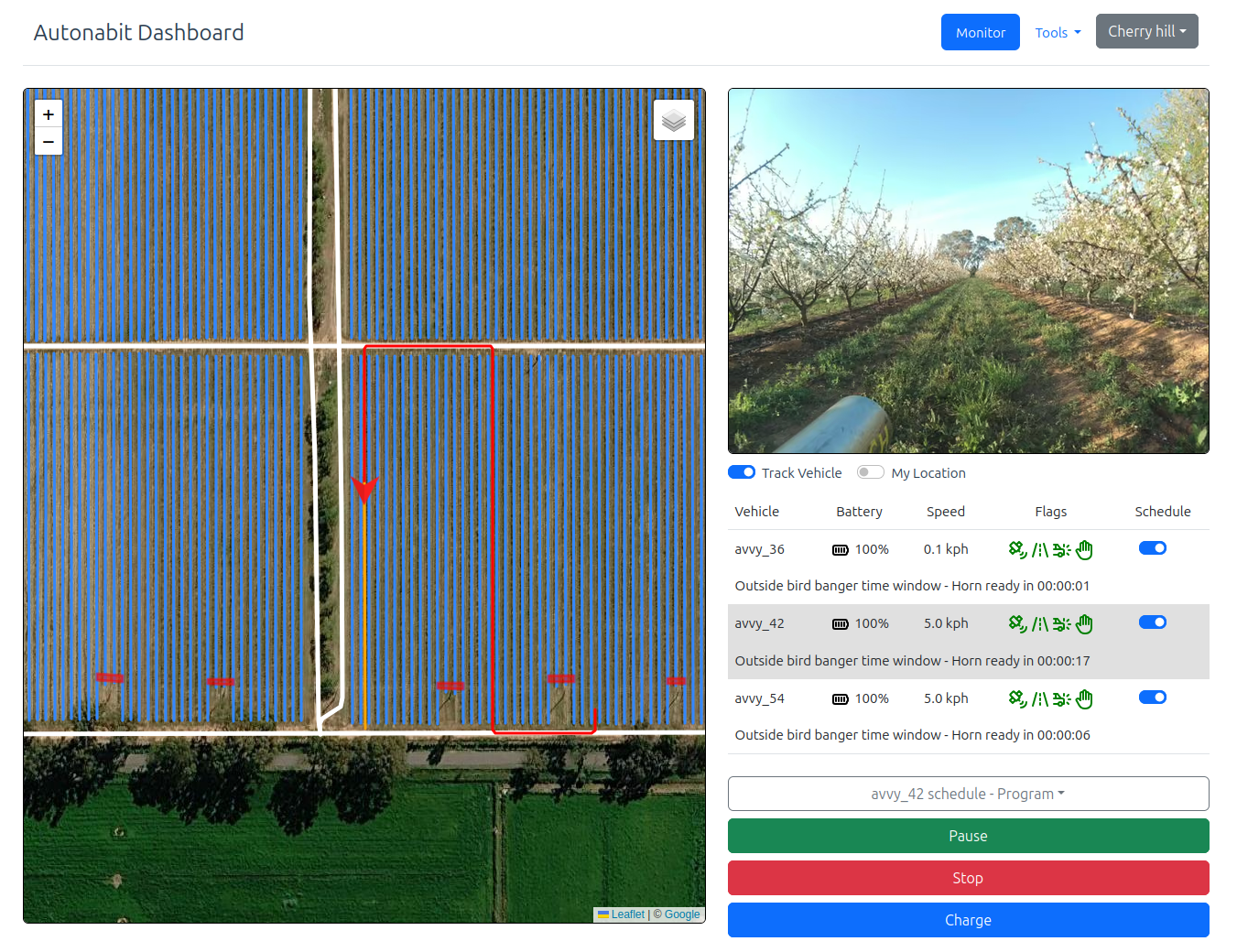
The screen is divided into two panes:
- Map pane (left) shows where each robot is and the features of the site it is operating in.
- Vehicle pane (right) shows information and controls for individual robots.
Map Pane
Robots and Paths
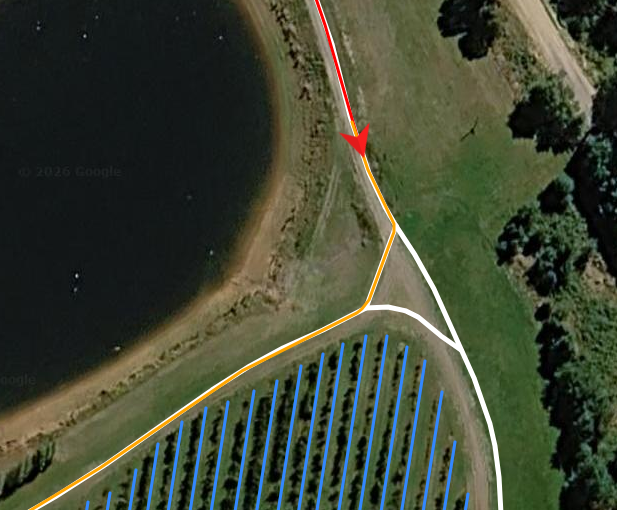
Each robot is shown on the map as an arrow, pointing in the direction it is travelling. Zoom in on an arrow to see the robot's exact position within the block.
The orange line shows the path the robot has planned and will follow as it moves through the site.
The red line shows the path the robot has taken.
Map Zones
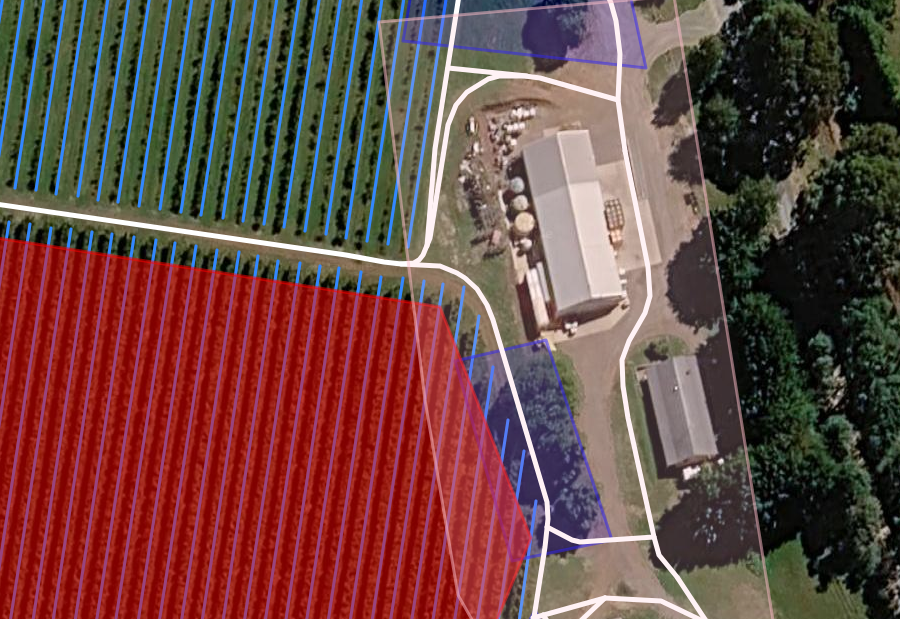
Coloured zones mark areas where the robot should behave differently:
| Colour | Zone | Meaning |
|---|---|---|
| Red | Keep-out zone | The robot will not enter this area. |
| Pink | No-horn zone | The robot will not sound its horn in this area. |
| Blue | Reduced GPS accuracy zone | GPS precision is expected to degrade here, and the robot is permitted to continue operating. |
About reduced GPS accuracy zones
Under normal conditions, the robot's GPS is accurate to approximately 2–5 cm. Near tree lines and other overhead cover, accuracy can drop to around 0.5 m.
Reduced GPS accuracy zones are only set up in areas that have been checked and confirmed as safe to operate in at lower precision, such as wide headlands with ample clearance. Outside these zones, the robot will stop if GPS accuracy falls below the required level.
Vehicle Pane
Camera Feed
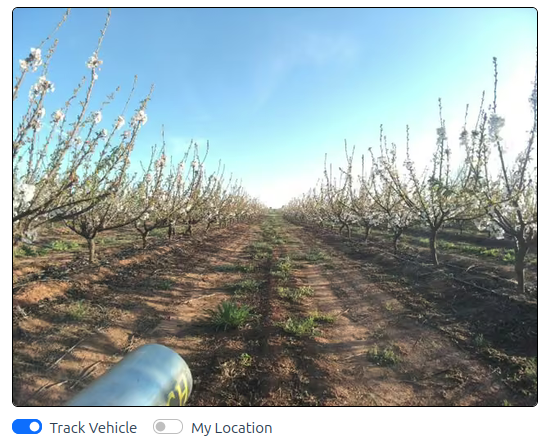
The top of the vehicle pane shows a live camera feed from the selected robot. Until a robot is selected, this area displays Waiting for image.
Vehicle Status Table
The vehicle status table lists every robot at the farm. Click a robot's row to select it. The map will zoom to that robot and the camera feed will begin streaming.
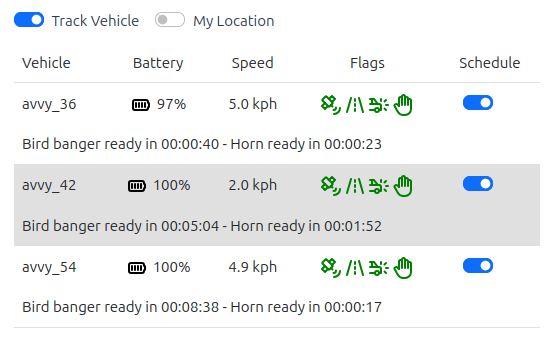
Each row shows:
| Column | Description |
|---|---|
| Vehicle | The robot's identifier (for example, avvy_36). |
| Battery | Current battery charge. |
| Speed | Current speed of the robot. |
| Flags | Status indicators for conditions that can stop the robot (see below). |
| Schedule | Toggle to turn the robot's schedule on or off. |
Flags
The flags show whether anything is preventing the robot from operating. Each flag is green during normal operation and turns red when triggered.
| Flag | Name | Triggered when |
|---|---|---|
| Satellite | GPS | GPS accuracy has fallen below the required level. |
| Road | Obstacle detection | An obstacle is blocking the robot's path. A red cross appears through the road symbol. |
| Impact | Crash detection | The bump stop on the front of the robot has been triggered. |
| Hand | E-stop | The emergency stop button on the back of the robot has been pressed. |
Tip
If a robot has stopped unexpectedly, check the flags first. For example, a red hand indicates that someone in the field has pressed the robot's E-stop.
Track Vehicle
When Track Vehicle is on, the map follows the selected robot as it moves. Tracking turns off automatically when you scroll or pan the map. Switch it back on to snap the map back to the robot.
My Location
Turn on My Location to show your own position on the map as a pin. Your browser or device will ask for location permission the first time you use it.
This is useful for finding a robot in the field: with both your position and the robot's position on the map, you can navigate directly to it.
Program Selection
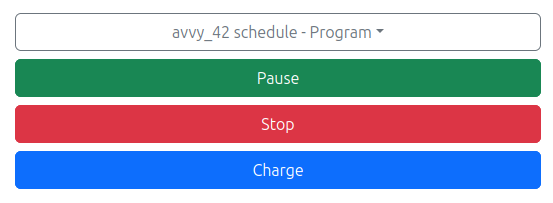
Below the vehicle status table is the program selection menu for the selected robot. It shows what the robot is currently running (for example, avvy_36 schedule - Program). Open the drop-down to see and choose from all programs set up for this farm.
Robot Controls
| Button | Action |
|---|---|
| Pause | Stops the robot where it is. When resumed, the robot continues exactly where it left off. |
| Stop | Stops the robot and clears its current program state. |
| Charge | Sends the robot back to its charger. |
Clearing a block
Use Charge when you need the robot out of the orchard or vineyard for a few hours. The robot will return to its charger, so you can be confident it is no longer in the working area.